- DATE:
- AUTHOR:
- The Scribe team
Give every improvement goal its own home with Projects
What's new
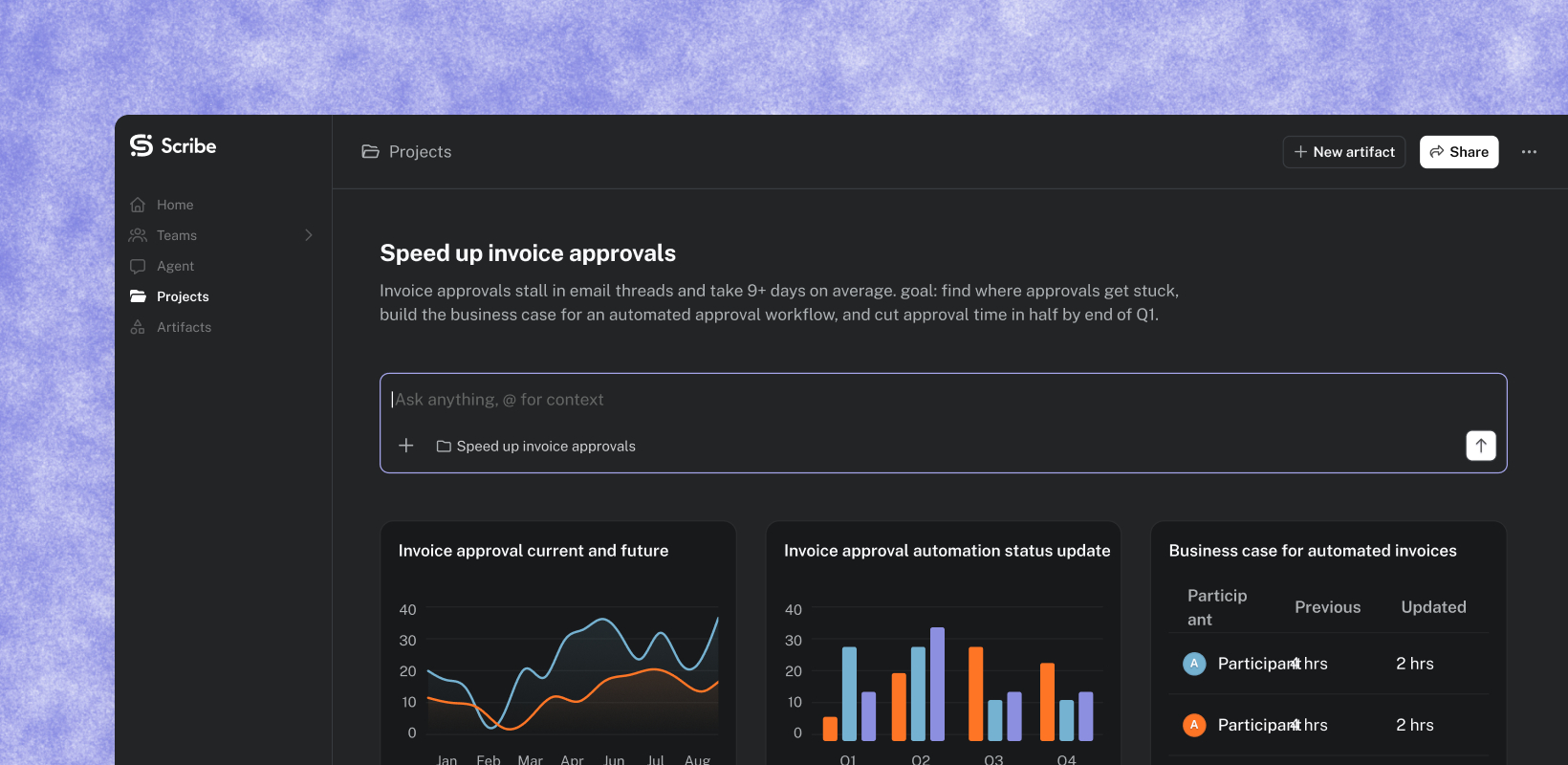
Optimize now has a Projects tab. A project is a home for one goal, such as “Speed up invoice approvals” or “Track AI usage,” and it keeps that goal’s agent chats, artifacts, and shared memory together. Tell Optimize what you want to work on and what you’re trying to accomplish, and the agent asks a few short multiple-choice questions and saves your answers to the project.
Every chat started in a project already knows your goal and past work, so you don’t re-explain it. The project page also suggests what to ask next, based on your goal. You can share a project with specific people, teams, or everyone in Optimize.
Projects are live for all Optimize customers.
How it works
Start from a goal. Open Projects in the side nav and select New project. Name what you want to work on, choose who can access it, and describe what you’re trying to accomplish, including any success metrics.
Answer a few questions. The agent checks your captured data, asks short multiple-choice questions about where to start and what matters most, and saves the agreed scope to the project.
Never start from a blank page. The project page shows four suggested prompts built from your goal, and its agent input is already scoped to the project.
Keep everything together. Chats and artifacts you create in a project are filed there. You can pin the ones you reach for most. In any new agent chat, use Add to project to file it under one of your projects.
Share what the agent knows. Project memory holds your goal, business case, and evidence status. The agent uses it in every chat in the project. Anyone on the project can view and edit it from the project’s ••• menu.
Share with your team. Add specific users or teams, or let anyone in Optimize access the project. Artifacts created in a project are viewable by everyone on it, so the business case or chart you build can become your update to leadership.
Find your work. The Projects list has tabs for All, Mine, Shared with me, and Archived, with search and filters by team and creator. Teams pages also have a Projects tab.
FAQs
Q. Who can create a project?
A. Anyone with access to Optimize. When you create a project, you choose between “Only users added can access” and “Anyone in Optimize can access.”
Q. Can my teammates see my agent chats?
A. No. Agent chats stay private, even in a shared project. To share work, create an artifact in the project. Everyone on the project can view it.
Q. Do I need to do anything to turn this on?
A. No. Projects appears in the Optimize side nav, and nothing is created until you start a project.
Q. Do my existing chats and artifacts change?
A. No. Existing chats and artifacts stay as they are, and no migration is needed. Projects organizes them around a goal. It doesn’t replace them.
Q. Who can see project memory?
A. Everyone with access to the project can view and edit it. It’s used only for chats in that project.
Q. Does it cost extra?
A. No, Projects is included with Optimize.